

How do I update my Smart TV?
28 December 2025
Contents
Is your TV lagging, are some apps refusing to launch, or are you seeing a persistent message prompting you to update? A Smart TV’s firmware works like a smartphone operating system: it requires regular patches to remain functional and secure. Here’s how to do it, whatever the brand of your TV.
Why these updates really matter
Leaving a connected TV without updates exposes it to very real risks. In November 2023, cybersecurity researchers identified four vulnerabilities in webOS (the system used by LG TVs) that allowed an attacker to take full control of the device via the home network. These vulnerabilities could allow an attacker to add themselves as a user and gain access to the TV, install malware, spy on network traffic, or move laterally within the home network. More than 91,000 devices exposed on the Internet were potentially vulnerable before the patches were rolled out in March 2024.
Beyond security, updates fix software malfunctions, improve overall stability, and maintain compatibility with streaming services. Netflix, Prime Video, or Disney+ require minimum system versions to work properly: outdated firmware can cause freezing, playback errors, or an app simply disappearing altogether.
Some manufacturers also add new features via these updates. LG, for example, added 120 Hz modes, Dolby Vision Gaming, and a new Home interface to its 2019 and 2020 TVs. Samsung is currently rolling out Tizen 9.0 to its 2024 models, with a redesigned interface and new menus.
Updating via the Internet: the standard method
Most recent TVs automatically download and install updates when they are connected to the network. This option is usually enabled by default, but it’s best to check that it really is.
On a Samsung TV (Tizen OS)
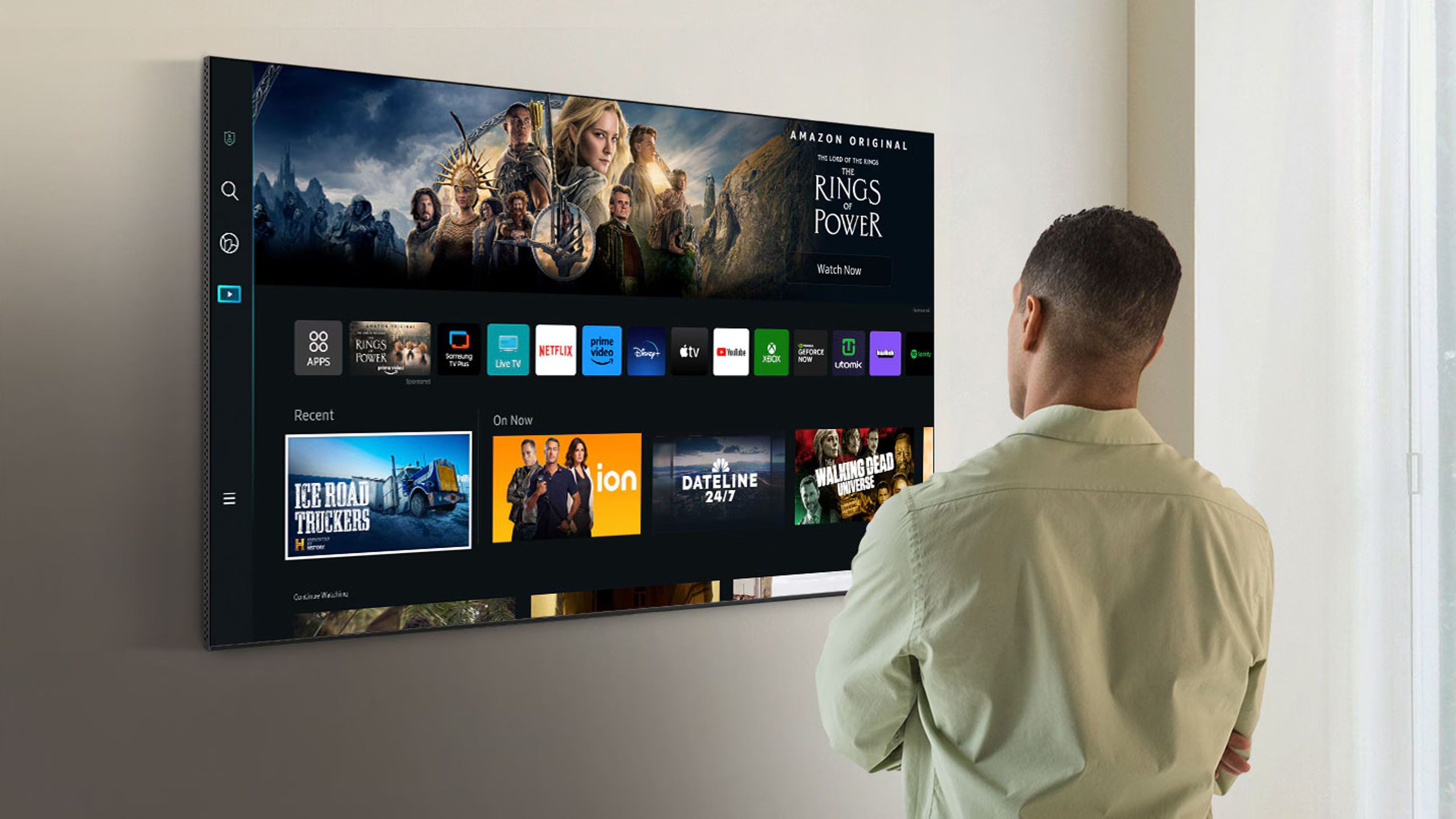
Press the Home button on the remote, then go to Settings → Support → Software Update. The “Auto Update” option must be enabled. To start a manual check, select “Update Now.” The TV will then look for available updates and install them immediately if a new version is found. Once finished, the TV will restart with the new firmware installed.
On 2024–2025 models, the access path may vary slightly: press the left directional key from the home screen to access Settings, then navigate to Support → About This TV.
On an LG TV (webOS)
From the home screen, click the gear icon at the top left to open the settings. Navigate to Customer Support → Software Update. To enable automatic updates, select “Allow Automatic Updates.” Manual checking is done via “Check for Updates.”
On Android TV or Google TV (Sony, TCL, Philips…)
Press the Home button, then go to Settings → Device Preferences (or System) → About → System Update. To keep the software automatically up to date, the “Automatically check for updates” or “Automatic software download” option must be enabled.
On Sony TVs, the path is often: Help → System software update.
Updating via USB drive: when the Internet isn’t enough
Update failures after download are often caused by validation issues (Wi-Fi dropouts, DNS errors), insufficient internal storage, or a partially corrupted file. When updating via the Internet keeps failing, or if your TV isn’t connected to the network, a USB drive remains a reliable option.
Preparing the USB drive
The required formatting varies by brand. Samsung recommends a drive formatted in NTFS or exFAT, as FAT32 is often not supported for updates. LG, on the other hand, generally accepts FAT32. If in doubt, exFAT is a good compromise accepted by most systems.
Use an empty drive to avoid any confusion and make sure it has at least 1 to 2 GB of free space.
Downloading the firmware
Go to the manufacturer’s official website (samsung.com, lg.com, sony.com, etc.) and open the Support or Assistance section. Enter the exact model number of your TV — usually found on a label on the back of the unit or accessible from the Settings → About menu.
Download the update file corresponding to your model. The file structure must be followed meticulously:
For Samsung: unzip the archive to the USB drive. You should get a folder (for example T-KTM2DEUC) and an SWU_AUTO_FLAG file at the root of the drive, without placing them in a subfolder.
For LG: create a folder named exactly “LG_DTV” at the root of the USB drive, then extract the contents of the downloaded file into this folder.
Installation
Insert the USB drive into a USB port on the TV. On most models, a detection window will automatically appear offering installation. If not, manually go to the update menu and select the USB option or “Update Now.”
Do not unplug the USB drive during installation. Do not turn off the TV. Do not cut the power. Any interruption during the process can irreversibly damage the system.
When the update refuses to install
Several situations can block an update.
Insufficient storage space: installed apps occupy the TV’s internal memory. On Samsung TVs, a “Flash Reset” can free up space. Under the Samsung logo, a small button is located about 2–3 cm from the bottom edge. With the TV turned on, hold this button for 5 to 10 seconds, release it, then press the power button on the remote for 5 to 10 seconds. The TV restarts after freeing up storage space.
“No updates available” message: updates are rolled out gradually by region. Firmware may be available on the manufacturer’s website without yet being offered via automatic update. The USB update lets you bypass this wait.
Repeated update failures: unplug the TV from the power outlet for 2 to 5 minutes, then plug it back in. This power reset often resolves temporary lockups. Also favor a wired Ethernet connection rather than Wi-Fi to avoid download interruptions.
Update button greyed out: first check that the TV is properly connected to the Internet. If the connection is stable, try closing any running streaming app before accessing the update menu.
Precautions and best practices
A firmware update usually takes between 5 and 20 minutes depending on the file size and connection speed. During this time, the TV may display a black screen or restart several times: this is normal.
Unlike computers or smartphones, TVs rarely offer a backup or rollback mechanism. If something goes wrong, options are limited. Most manufacturers do not allow you to revert to a previous firmware version.
Back up important account information before a major update. In case of an unexpected reset, you’ll have to set up your streaming apps again.
If you prefer to keep control over updates, disable the automatic option and check manually once a month. Some cautious users wait a few days after an update is released to let others report any issues.
Length of software support
Manufacturers do not all commit to the same support duration. Samsung indicates that most TVs receive feature updates for two years, then stability fixes thereafter. LG now offers a seven-year update plan for its recent TVs, with the promise to roll out webOS 25 to models as old as 2021.
Once the support period ends, updates stop and some apps eventually become incompatible. This is a reality to consider when buying: a TV sold in 2019 might no longer receive security patches today.
Popular products
You may also like to read
 Subwoofer or rear speakers: which should you add to your soundbar first?Tutorials and practical guides
 PCM, Bitstream or Auto, which audio setting should you choose on your TV?Tutorials and practical guides
 Sony NW-WM1ZM3 and NW-WM1AM3: what are the differences between the two Walkman models?Hi-fi and home cinema news
 Can a projector really replace a TV for everyday use?Comparisons and buying guides
 What are the best OLED TVs in 2026?Comparisons and buying guides
 LG G6 or Sony Bravia 8 II: which TV should you choose in 2026?Comparisons and buying guides