

How to Reduce Input Lag for Ultra-Responsive Gaming: Complete Technical Guide
December 29, 2025
Contents
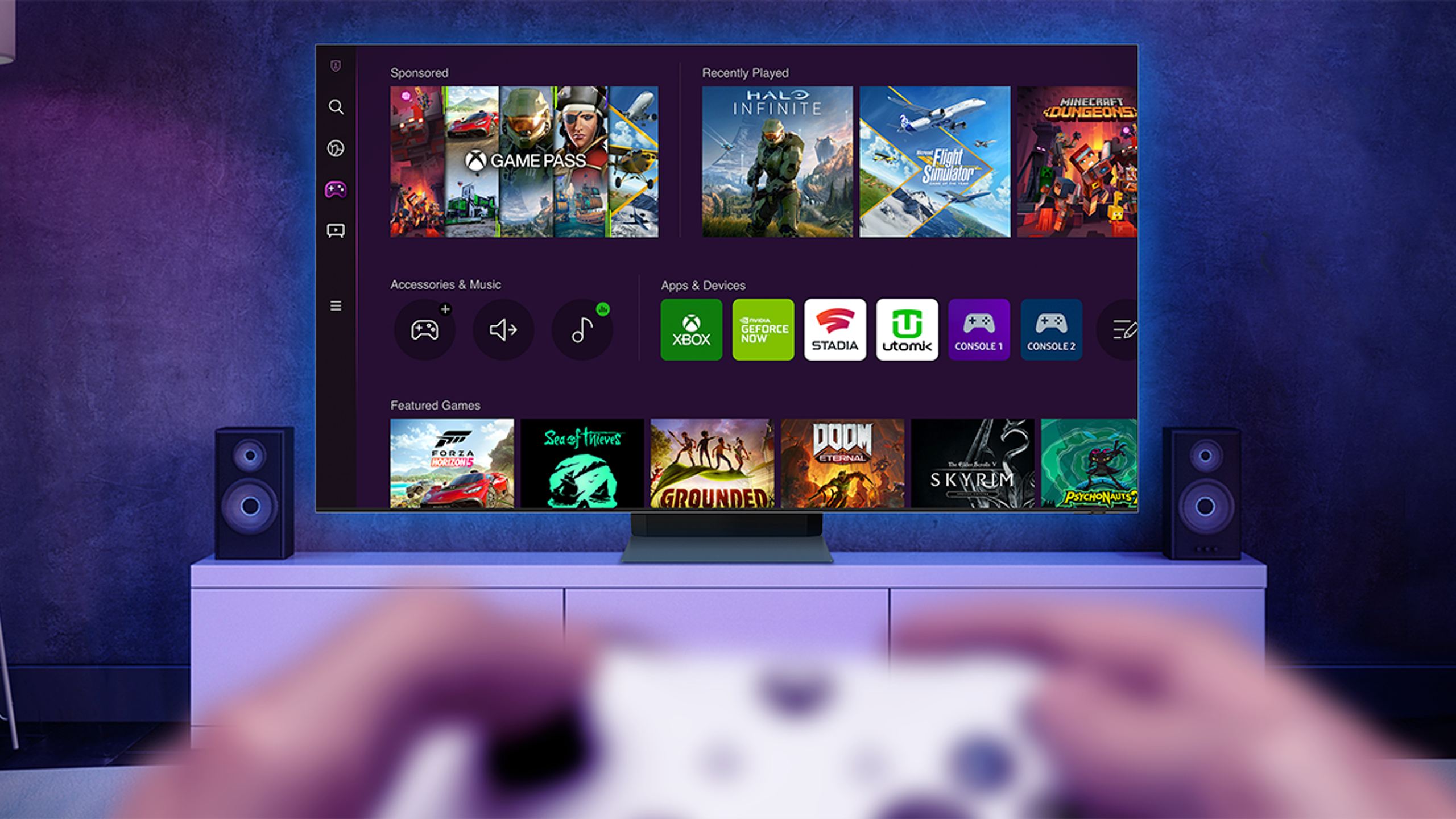
You pull the trigger, but the shot fires with a slight delay. Your turn in Forza happens a fraction of a second too late. That feeling of disconnection between your hands and the screen has a name: input lag. In a cinema-style living room, this phenomenon can turn a gaming session into an exercise in frustration. Yet with the right settings, you can restore responsiveness close to that of a gaming monitor while keeping all the benefits of the big screen.
What input lag really measures
Input lag is the time between an action on your controller and its display on the screen, measured in milliseconds (ms). To give you a sense of scale: below 20 ms, most players don’t perceive any latency. Between 20 and 40 ms, the delay is still acceptable for adventure or racing games. Beyond 50 ms, even slower-paced titles start to suffer, and competitive FPS and fighting games become downright unpleasant.
At 120 frames per second, if you’re playing with 40 ms of latency while your online opponent only has 8 ms, they see four full frames ahead of you. In fast-paced games, this difference can decide the outcome of a duel.
The latency chain: where the milliseconds hide
In a home cinema setup, the signal passes through several devices before reaching your eyes. Each can potentially add delay.
The TV or projector is the main source of latency. Image processing (motion smoothing, contrast enhancement, upscaling) requires processing time. Some TVs show 10–15 ms in game mode, but exceed 80 ms in standard cinema mode. Recent OLED TVs reach 9 to 12 ms, rivaling gaming monitors.
The AV receiver can add between 0 and 30 ms depending on its settings. Internal video processing, on-screen volume display, or resolution conversion are all aggravating factors. In passthrough mode, it theoretically adds no latency.
Soundbars and audio systems connected via ARC/eARC sometimes introduce a delay, especially for decoding Dolby Atmos or DTS:X streams (expect 50 to 150 ms for complex formats).
The controller itself adds a few milliseconds. Modern Bluetooth controllers generally add 3 to 8 ms. A counterintuitive finding: on PlayStation 5, the wireless DualSense can be slightly faster than USB thanks to an optimized polling rate. For 95% of home use cases, the difference between wired and wireless is imperceptible.
Optimizing the TV: the biggest performance gain
Enable game mode
This is the most effective step, typically cutting input lag by a factor of four or five. Game mode automatically disables heavy processing: motion interpolation, noise reduction, edge enhancement, dynamic contrast.
Access varies by brand:
- LG: Settings → Picture → Picture Mode → Game (or Game Optimizer)
- Samsung: Settings → General → External Device Manager → Game Mode
- Sony: Quick Settings → Content Type → Game
Other brands offer similar functions, sometimes buried in submenus: check the manual.
Use ALLM for automation
Auto Low Latency Mode is part of the HDMI 2.1 specifications. When a compatible console (PS5, Xbox Series) launches a game, it sends a signal to the TV to automatically switch to low-latency mode. When you quit the game, it returns to the usual mode. This feature eliminates forgetfulness and simplifies switching between Netflix and gaming.
Disable remaining processing
Even in game mode, some processing may stay active. Sony TVs, for example, keep the “Reality Creation” setting on, which adds a few milliseconds. Make sure these are disabled: MPEG noise reduction, motion smoothing (TruMotion on LG, Motionflow on Sony, Auto Motion Plus on Samsung), edge enhancement, power-saving mode.
Use VRR for smoothness
Variable Refresh Rate synchronizes the TV’s refresh rate with the source. This technology prevents tearing and reduces stuttering without adding latency, unlike software V-Sync. VRR requires an HDMI 2.1 connection; most mid-range and high-end models since 2021 support it.
Configuring the AV receiver
Enable video passthrough mode
Recent receivers offer a “passthrough”, “bypass” or “direct” mode that sends the video signal to the TV without processing. The receiver then adds no video latency while still handling the audio normally.
On Denon and Marantz models, look for “Video Mode: Bypass”. Yamaha offers “Video Processing: Off”. Onkyo uses “Monitor Out: Direct”. The principle is the same: prevent the receiver from touching the picture.
Disable the on-screen display (OSD)
The overlay that shows volume or source forces the receiver to decode the HDMI signal, overlay graphics, then re-encode the stream. This process typically adds 16 to 33 ms. Disable this function; you’ll still see the volume on the device’s front panel.
Turn off upscaling
If your receiver offers upscaling (1080p to 4K conversion), disable it for gaming. This processing increases latency without significantly improving the image compared to the TV.
Managing audio sync
The classic problem: picture ahead of sound
In game mode, the TV displays the image almost instantly, but sound processed by the receiver or soundbar arrives with a few dozen milliseconds of delay. Result: voices come after lip movements, gunshots sound slightly late.
To correct this delay, use the “A/V Sync” or “Audio Delay” setting found on most TVs and soundbars. Some models allow a negative delay (advance audio), a valuable option when the sound comes after the picture.
Switch audio to PCM
The PCM format (uncompressed) reduces decoding time compared to Dolby or DTS streams. Selecting “PCM” or “Linear PCM” in your console’s settings can cut audio latency by 30 to 50 ms. The trade-off: you lose surround capabilities beyond 5.1.
Connection configurations
Console → TV → Soundbar (via eARC): the most common setup. The TV processes video in game mode while the audio takes a separate path. Problem: decoding complex formats by the soundbar takes time. Solution: adjust the A/V Sync setting.
Console → Soundbar → TV (passthrough): plugging the console into the soundbar’s HDMI input reverses the situation. Audio is processed immediately, video may be delayed by the TV, which is easier to correct. Drawback: not all soundbars support 4K/120 Hz passthrough.
The case of projectors
Gaming projectors have caught up. Recent models drop below 20 ms in game mode, with references such as the BenQ X3100i (16 ms in 4K/60 Hz, 4 ms in 1080p/240 Hz), the Optoma UHD38x (4.2 ms in 1080p/240 Hz), or the Nexigo Aurora Pro (9 ms in 1080p/240 Hz).
DLP technology generally offers shorter response times than LCD or LCoS projectors. Game mode is essential—projectors apply by default processing that can triple latency.
Watch out for automatic keystone correction: XGIMI projectors show 18 ms with this feature disabled, but jump to 60 ms when it’s on. Position the projector to avoid correction, or disable it for gaming.
4K/120 Hz is still rare on projectors. Most top out at 1080p/240 Hz or 4K/60 Hz. Competitive gamers will prefer high-refresh 1080p modes.
Choosing the right HDMI cables and ports
The HDMI 2.1 standard provides the bandwidth needed for 4K/120 Hz, VRR, ALLM, and QFT (Quick Frame Transport). If you play in 4K/60 Hz or 1080p/120 Hz, HDMI 2.0 is enough.
Not all of a TV’s ports are equal. On many models, only one or two ports offer full HDMI 2.1 compatibility—usually those labeled “Gaming” or marked with a controller icon. For 4K/120 Hz with HDR, use a certified “Ultra High Speed HDMI” cable (48 Gbps). Low-end cables can cause signal loss and flickering.
Direct connection: the nuclear option
If input lag remains too high despite optimizations, connect the console directly to the TV and send audio separately.
Reverse eARC: the console connects to the TV, game mode activates, and audio is sent back to the receiver via eARC. This works well if your TV handles audio extraction correctly.
HDMI audio extractor: an external box (€30–100) splits the video stream (sent to the TV) from the audio stream (sent to the receiver). Beware: few models handle 4K/120 Hz or dynamic HDR.
Optical output: the console sends video via HDMI to the TV, audio via optical to the receiver. Limitation: optical only carries compressed Dolby Digital 5.1, not lossless Atmos.
Pre-game checklist
- Game mode enabled on TV or projector
- ALLM functional (or manual switch to game mode)
- Remaining image processing disabled (motion smoothing, noise reduction)
- VRR enabled if available
- Receiver in video passthrough mode
- Receiver OSD disabled
- Console connected to the correct HDMI port (2.1 if needed)
- Audio sync adjusted if you notice any delay
A few milliseconds saved here and there add up. On a poorly configured home cinema chain, it’s easy to go from 120 ms to 20 ms by applying these settings—that’s the difference between a game that feels sluggish and responsiveness worthy of a gaming monitor.
Popular products
You may also like to read
 Yamaha, Onkyo, Marantz, Denon: which home theater amplifier under €2,000 in 2026?Comparisons and buying guides
 Onkyo Creator GX-AiO: three 2.1 speaker formats for TV, vinyl and computerHi-fi and home cinema news
 XGIMI Aura 3 Pro and Aura 3 Max: two ultra-short-throw 4K 120 Hz projectorsHi-fi and home cinema news
 Yamaha WXA-70A and WXC-70A: two new MusicCast amplifiers and network playersHi-fi and home cinema news
 OLED image: Is burn-in still a real risk in 2026?Concepts and technologies
 Contrast and black level: why OLED comes out aheadComparisons and buying guides