
How to connect a Bluetooth headset to a TV?
December 24, 2025
Contents
Watching a movie late at night without waking up the whole house, following a series while someone else is working in the room, or simply enjoying better sound quality than your TV’s built-in speakers: there are plenty of reasons to want to connect a Bluetooth headset to your TV. The good news is that the process is still quite straightforward, even if it varies depending on the equipment you have.
The TV has Bluetooth
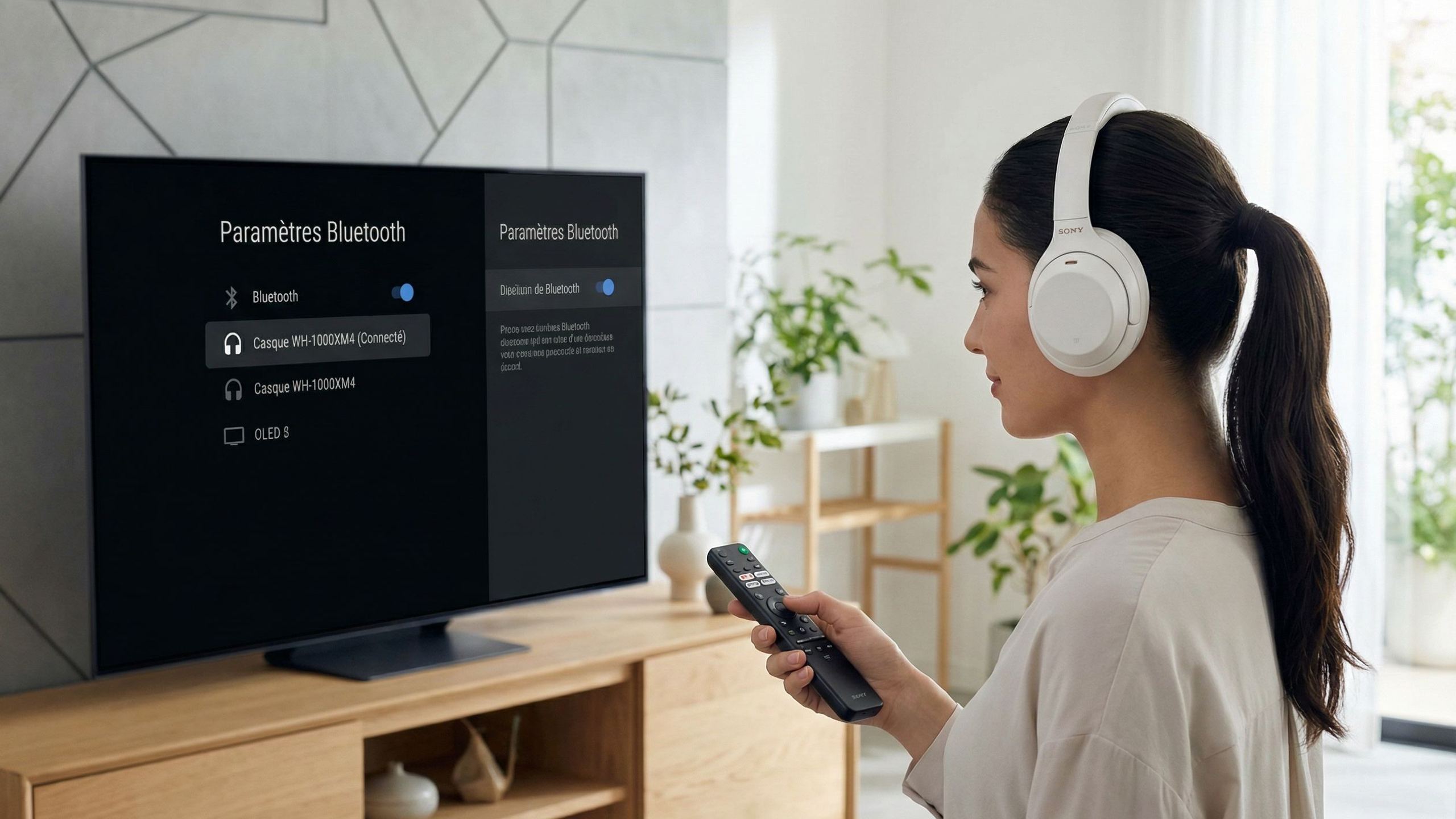
Most televisions sold since 2018 include a Bluetooth chip capable of sending the audio signal to a wireless headset. Samsung, LG, Sony, TCL, Philips: the major manufacturers offer this feature on their connected ranges.
The principle is the same from one brand to another. First, you need to put the headset into pairing mode, usually by holding down the power button or the Bluetooth button for 5 to 7 seconds, until an indicator light flashes or a voice prompt confirms activation. Then, in the TV’s menus, go to the audio settings, then to the list of available Bluetooth devices. The headset will appear; just select it to establish the connection.
The path to the Bluetooth settings varies by brand:
- Samsung: Settings → Sound → Sound Output → Bluetooth Speaker List
- LG: Settings → Sound → Sound Out → Bluetooth Devices
- Sony: Settings → Remotes and Accessories → Pair Accessory
Note: Samsung TVs from 2022 onward allow you to connect two headsets simultaneously thanks to the Multi Connect function, which is handy for watching a movie together without disturbing others.
One detail to check: some older TVs do have Bluetooth, but only for receiving (to receive files from a smartphone, for example). They cannot transmit an audio signal. If the headset never appears in the list despite several attempts, this is probably the reason.
The TV doesn’t have Bluetooth
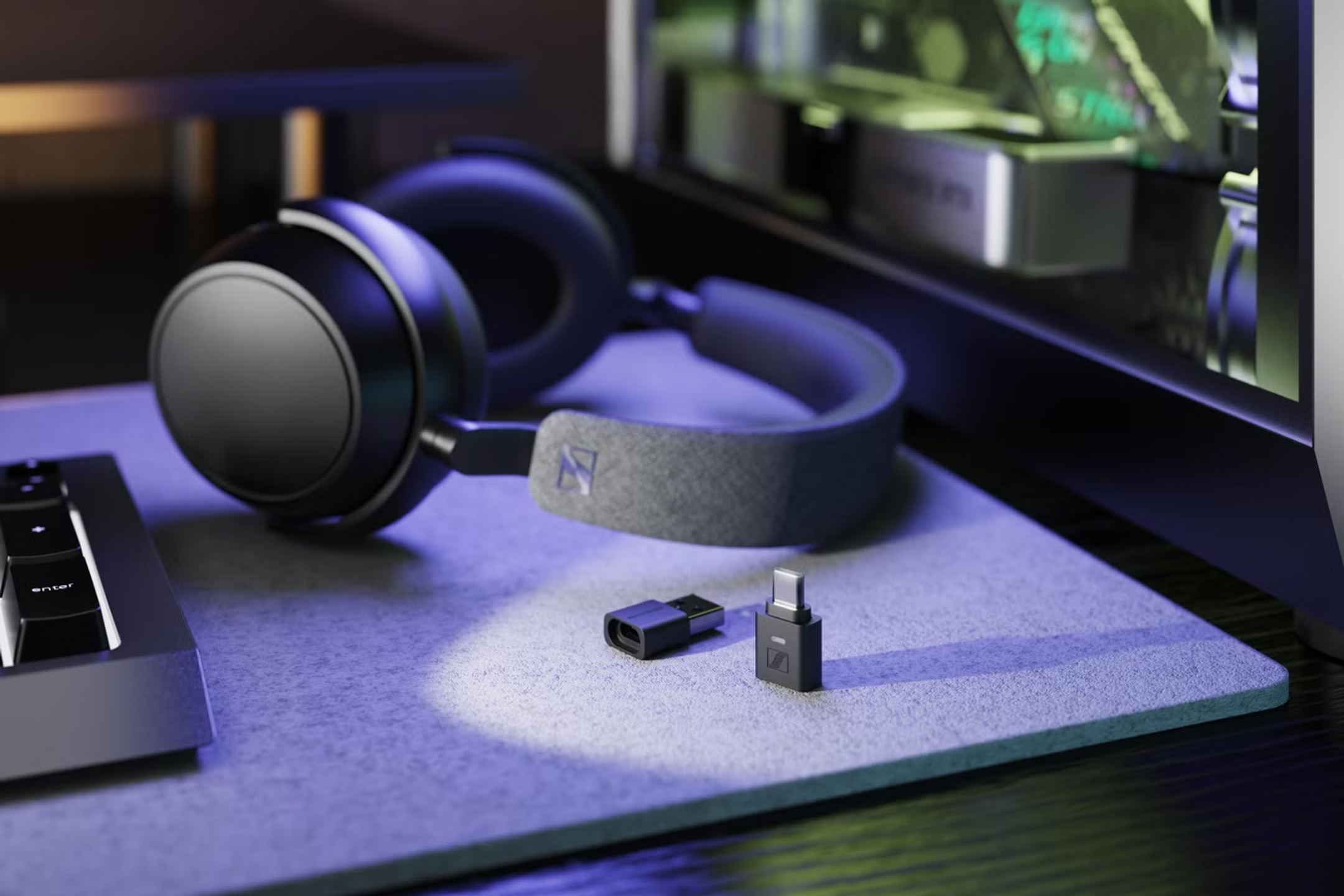
A TV without Bluetooth is not condemned to wired use. The solution lies in an external Bluetooth transmitter, a small box that plugs into an audio output on the TV and sends the sound wirelessly to the headset.
These adapters connect according to the outputs available on the TV: 3.5 mm jack (headphone out), RCA connectors (red and white), or digital optical output (TOSLINK). This last one generally offers the best sound quality. Once plugged in and powered (via USB or built‑in battery), the transmitter pairs with the headset in the same way as a TV with native Bluetooth.
Mid‑range transmitters offer interesting features: connection of two headsets simultaneously, extended range up to 30 meters, or compatibility with several types of audio outputs. Prices start around €20–25 for basic models and go up to €50–70 for the most fully featured versions.
One technical point to remember: if you use the optical output, you will often need to change a setting in the TV’s audio menu. The output format must be set to PCM (and not Dolby Digital or Bitstream), otherwise the transmitter will not be able to process the signal correctly.
The issue of audio/video delay
Bluetooth introduces latency, meaning a delay between the transmission and reception of the audio signal. This delay can cause a desynchronization effect where voices arrive slightly after lip movements on screen, which is quite noticeable during dialogue.
Latency depends on the codec used for transmission. The standard SBC codec generates about 170 to 200 milliseconds of delay. The aptX codec reduces this delay to around 150–170 ms. But it’s aptX Low Latency that really changes the game, dropping to around 40 ms, a level at which the delay becomes imperceptible for most viewers.
To benefit from reduced latency, both the headset AND the source (TV or transmitter) must support the same low‑latency codec. An aptX Low Latency headset connected to a transmitter that only supports SBC will bring no improvement. This compatibility should therefore be checked before purchase if lip‑sync is a concern for you.
Some TVs offer an audio/video sync setting in their advanced options, allowing you to delay the image to match the sound. This option can compensate for part of the problem, but is still less effective than a true low‑latency connection.
Other options to explore
Streaming boxes such as Roku, Fire TV or Apple TV sometimes offer interesting alternatives. The Roku mobile app, for instance, allows you to enable private listening: the sound then goes through the smartphone, where any Bluetooth headset connected to the phone can receive it. The Apple TV 4K connects natively to AirPods and other Bluetooth headsets with well‑controlled latency.
Radio‑frequency (RF) headsets are another, less common but effective option. They work with a dedicated base station that plugs into the TV and transmits sound over a radio frequency. The advantage: no perceptible latency and a range often greater than Bluetooth, with the ability to pass through walls. The drawback: these headsets are dedicated to this use and cannot connect to a smartphone or computer without their base.
If you run into problems
A few checks can resolve a situation where the headset refuses to pair or does not appear in the list of available devices.
Start by making sure the headset is not already connected to another device (smartphone, tablet, computer). Bluetooth generally only allows one active connection at a time. Turn off Bluetooth on other nearby devices or remove the existing pairing.
Check that the headset is indeed in active pairing mode, recognizable by the rapid flashing of the LED. Simply switching the headset on is not enough: it then tries to reconnect to a known device rather than accept a new connection.
Move away potential sources of interference: a Wi‑Fi router that’s too close, a running microwave oven, or a large number of active Bluetooth devices in the room. The 2.4 GHz frequency band is shared by many types of equipment.
As a last resort, a factory reset of the headset erases all stored connections and lets you start again from scratch. The procedure varies depending on the model, but is always described in the user manual.